您的第一個 flow
建立您的第一個 flow,使用 templates 重複利用提示詞,在 agents 運作時追蹤並引導它們,最後下載 report。
Flow 是指 PentAGI 的一次執行:包含一個目標、從您的訊息建立的 taskstask — 任務流程中的一個請求:其第一則訊息,或後續未回答代理問題的訊息。PentAGI 會將每個任務拆分為子任務。,以及 agentsagent — 代理PentAGI 的 AI 代理:擁有專屬提示詞、設定與工具的模型,在流程中執行特定類型的工作,例如測試、撰寫程式碼或搜尋網路。 在過程中執行的所有操作。
建立 flow
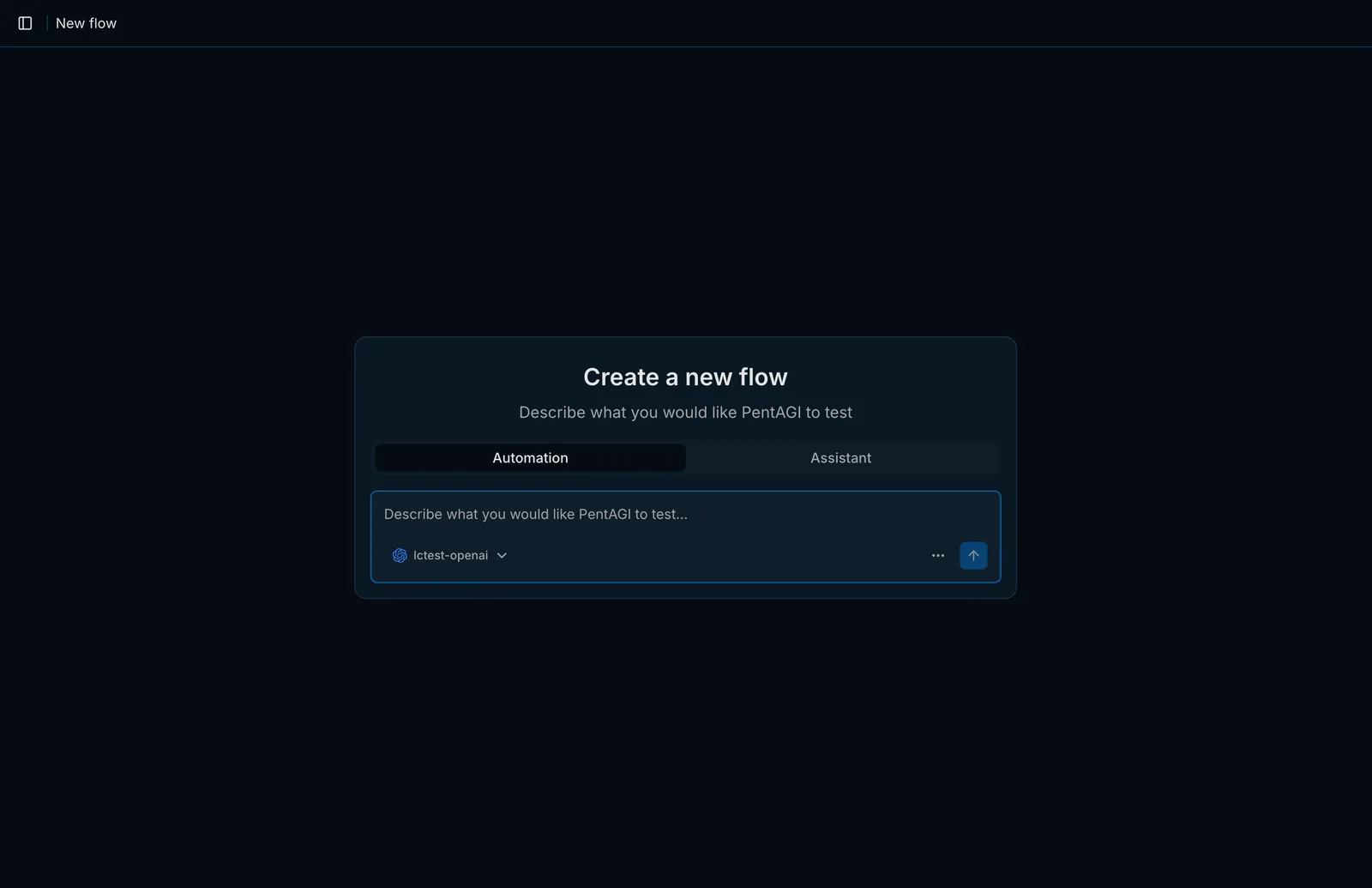
在側邊欄中開啟 Flows,並點擊 New Flow。
選擇模式:
為此 flowflow — 流程PentAGI 的一次執行:一個目標、從您的訊息建立的任務,以及代理在此過程中執行的所有操作。 選擇 LLM providerprovider — 提供者為 PentAGI 提供語言模型的服務或伺服器,例如 OpenAI、Anthropic 或本機 Ollama。。
以自然語言描述目標與目的。
良好的初始提示詞應包含目標名稱、評估類型、範圍限制以及您預期的結果:
Assess https://target.example for common web application vulnerabilities.
Focus on authentication, file handling, and injection issues. Stay within the
provided target only and summarize confirmed findings with reproduction steps.
請僅測試您擁有或已獲明確授權評估的系統。
使用 templates 重複利用提示詞
新 flow 表單提供 templatetemplate — 範本PentAGI 可重複使用的已儲存文字。儲存在 Templates 中的範本會填入新流程的第一則訊息;在 Enterprise 中,報告範本規定報告的章節及其順序,因此不同的範本會為客戶、工程師和管理層產生不同的文件。 選擇器,可從 Templates 中已儲存的 template 預填訊息。Templates 為純自然語言,無需特殊語法。
追蹤工作進度
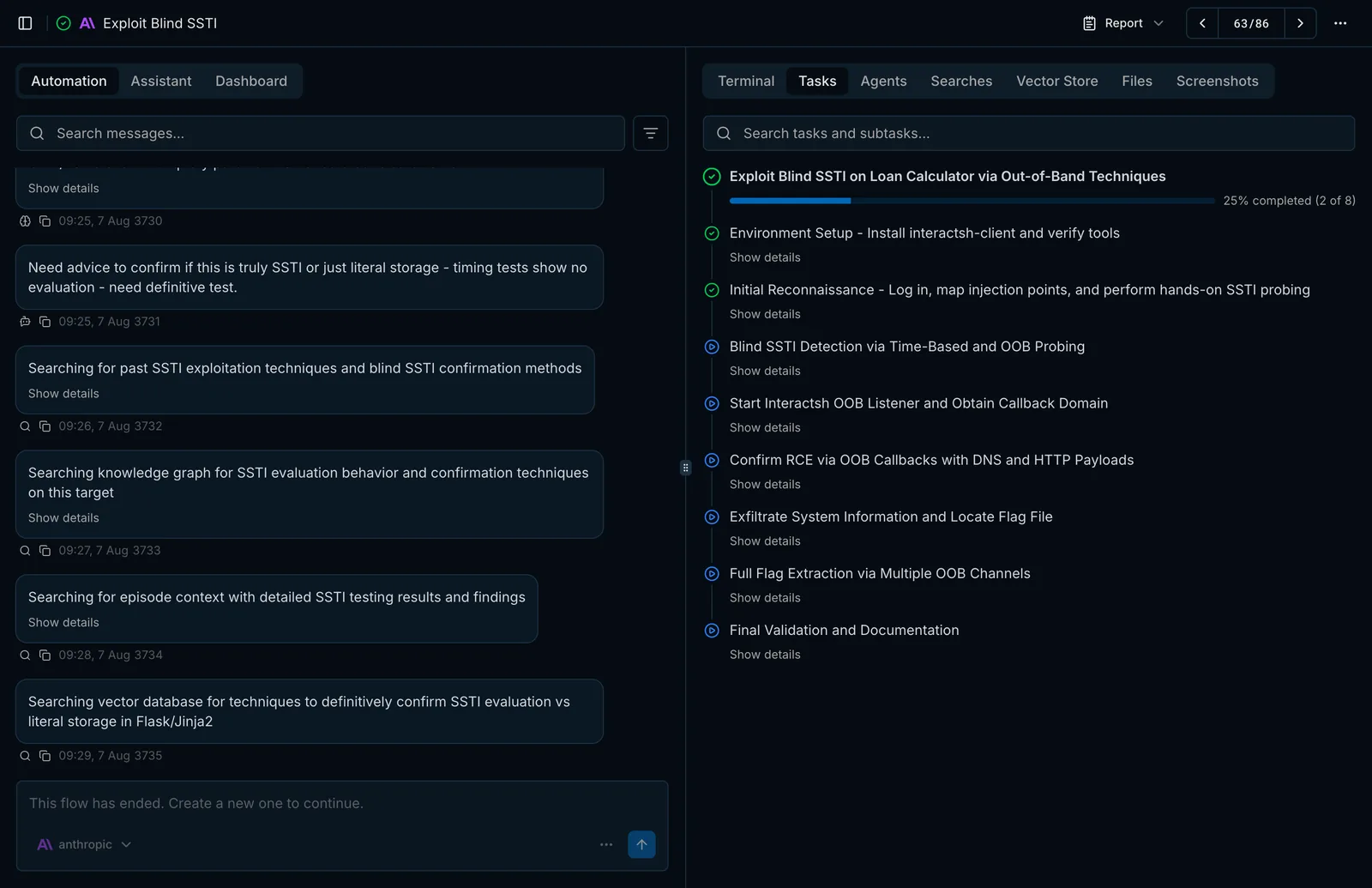
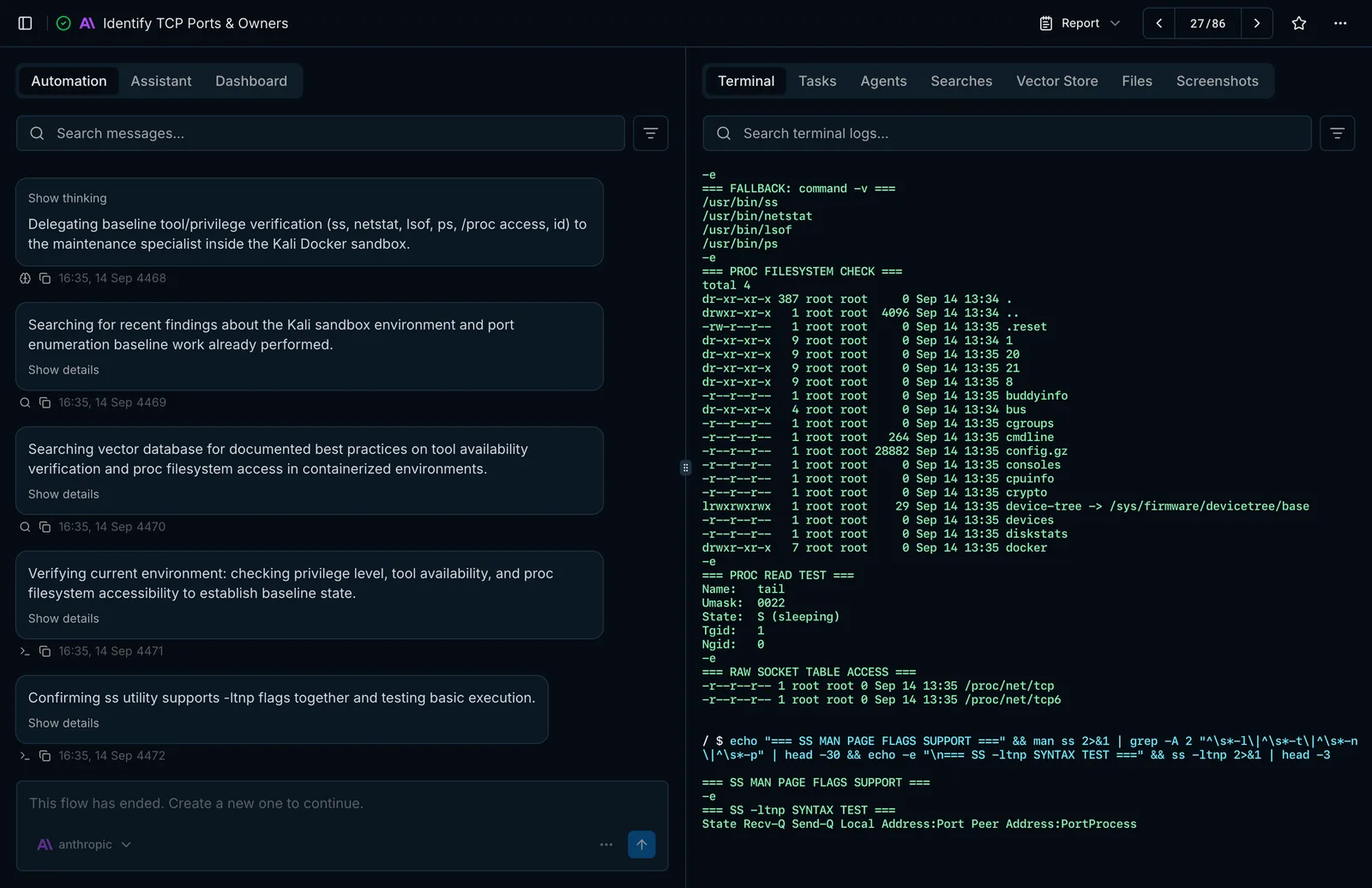
Flow 啟動後,PentAGI 會立即開啟 flow 頁面:
- Automation 顯示 agents 的訊息與進度;Assistant 則是具備相同 toolstool — 工具代理執行操作所用的手段:終端機、隔離瀏覽器或網路搜尋等內建功能,或沙盒中的程式,例如 nmap、metasploit 或 sqlmap。 的對話介面,而 Dashboard 會依模型、agent typeagent type — 代理類型代理扮演的角色,例如 pentester、coder 或 searcher。模型設定是依據代理類型來選擇。 與功能細分使用情況。
- Tasks 列出計畫——包含 tasks 與 subtasks 及其狀態。
- Terminal 即時串流來自 sandboxsandbox — 沙盒代理執行工具的隔離 Docker 容器。介面中將其顯示為 Terminal。 的每個指令及其輸出。
- Agents、Searches 與 Vector Store 顯示委派、網路研究與 memorymemory — 記憶代理保留資訊以便基於先前工作繼續發展,而非從頭開始:包含長期記憶、工作記憶與情景記憶。 檢索。
- Files 存放上傳檔案、附加資源及從容器提取的檔案,而 Screenshots 則保存 agents 所開啟頁面的截圖。
引導執行中的 flow
開啟同一 flow 的 Assistant 檢視畫面,即可檢查其狀態、停止目前 task、傳送後續指示或調整剩餘的規劃 subtasks——無需重新啟動 flow。
取得 report
使用 flow 頁面上的 Report 選單,即可在網頁上開啟 reportreport — 報告PentAGI 針對流程及其發現項目所撰寫的文件。在 Enterprise 中,這是一份根據範本建構、可直接交付客戶的文件。、複製內容,或將其下載為 Markdown 或 PDF 格式。
建議從狹窄的目標與單一明確的目的開始。簡短且專注的 flows 更易於審查,並有助於您在執行較大規模的 flows 前優化提示詞。
最後更新於