您的首个 flow
创建您的第一个 flow,使用 templates 复用提示词,在 agents 工作时跟随并引导它们,并在最后下载 report。
flow 是 PentAGI 的一次运行:包含一个目标、根据您的消息创建的 taskstask — 任务流程中的一个请求:其第一条消息,或并非回答智能体提问的后续消息。PentAGI 将每个任务拆分为子任务。,以及 agentsagent — 智能体PentAGI 的智能体:一种拥有独立提示词、设置和工具的人工智能模型,在流程中执行特定类型的工作,例如测试、编写代码或搜索网络。 在此过程中执行的所有操作。
创建 flow
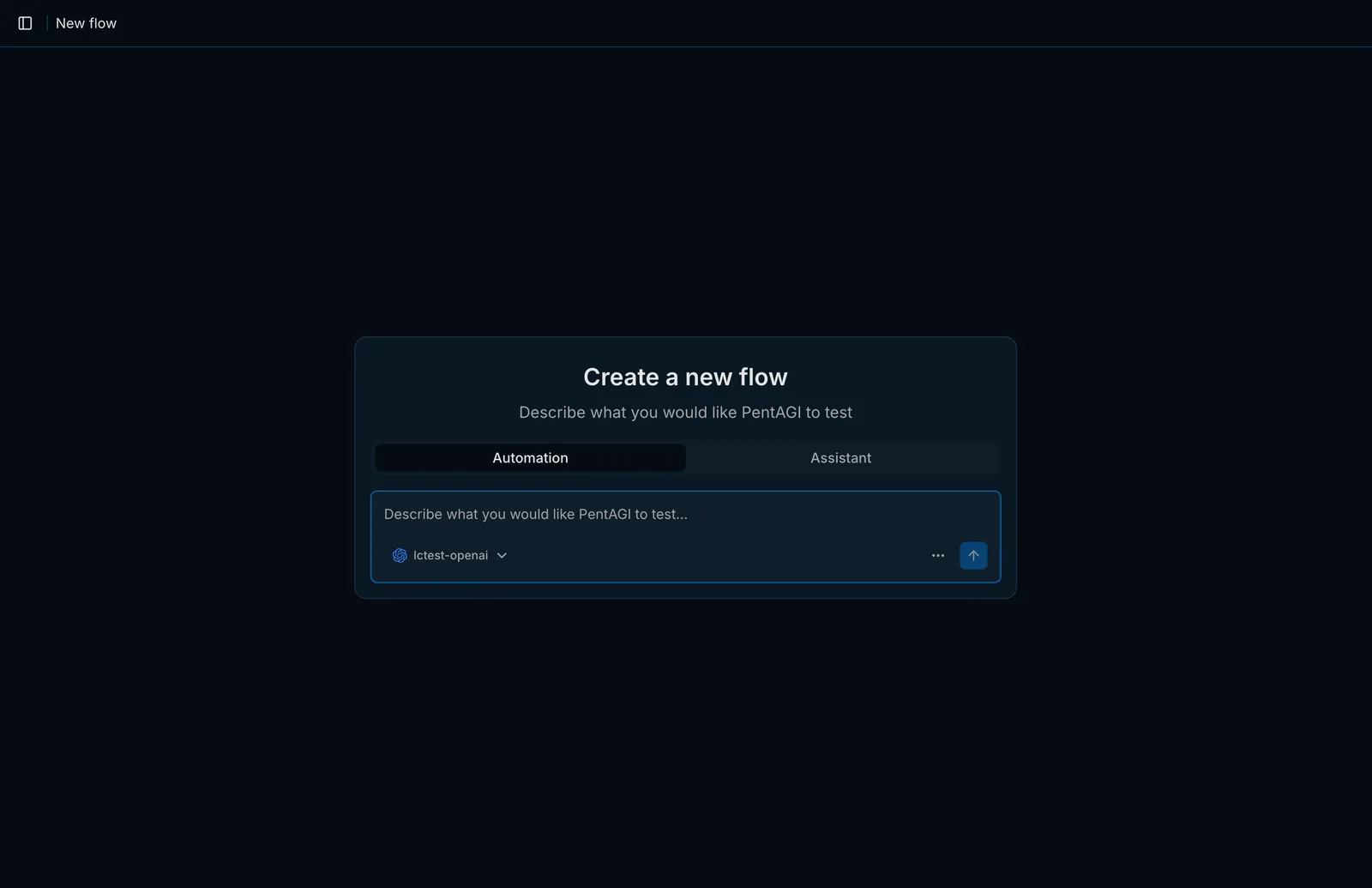
在侧边栏中打开 Flows,然后点击 New Flow。
选择模式:
为此 flowflow — 流程PentAGI 的一次运行:一个目标、根据您的消息创建的任务,以及智能体在此过程中执行的所有操作。 选择 LLM providerprovider — 提供商为 PentAGI 提供语言模型的服务或服务器,例如 OpenAI、Anthropic 或本地 Ollama。。
用自然语言描述目标和目的。
良好的初始提示词应指明目标、评估类型、范围限制以及您期望的结果:
Assess https://target.example for common web application vulnerabilities.
Focus on authentication, file handling, and injection issues. Stay within the
provided target only and summarize confirmed findings with reproduction steps.
请仅测试您拥有或已获明确授权进行评估的系统。
使用 templates 复用提示词
新建 flow 表单提供了一个 templatetemplate — 模板PentAGI 可重复使用的已保存文本。保存在 Templates 中的模板会填入新流程的第一条消息;在 Enterprise 中,报告模板规定报告的章节及其顺序,因此不同的模板为客户、工程师和管理层生成不同的文档。 选择器,可从 Templates 中已保存的 template 预填消息。Templates 为纯自然语言,无需特殊语法。
跟踪工作进展
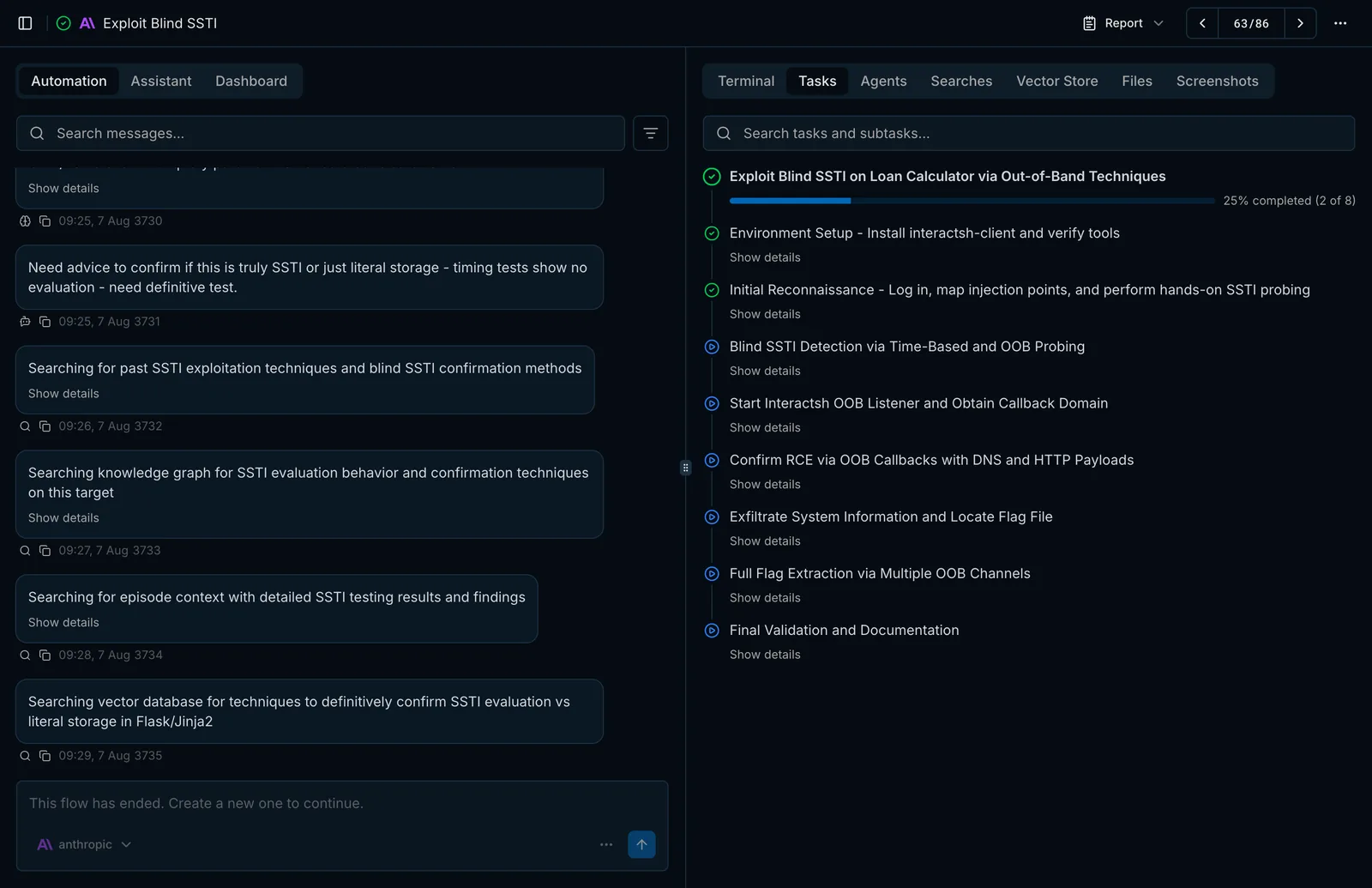
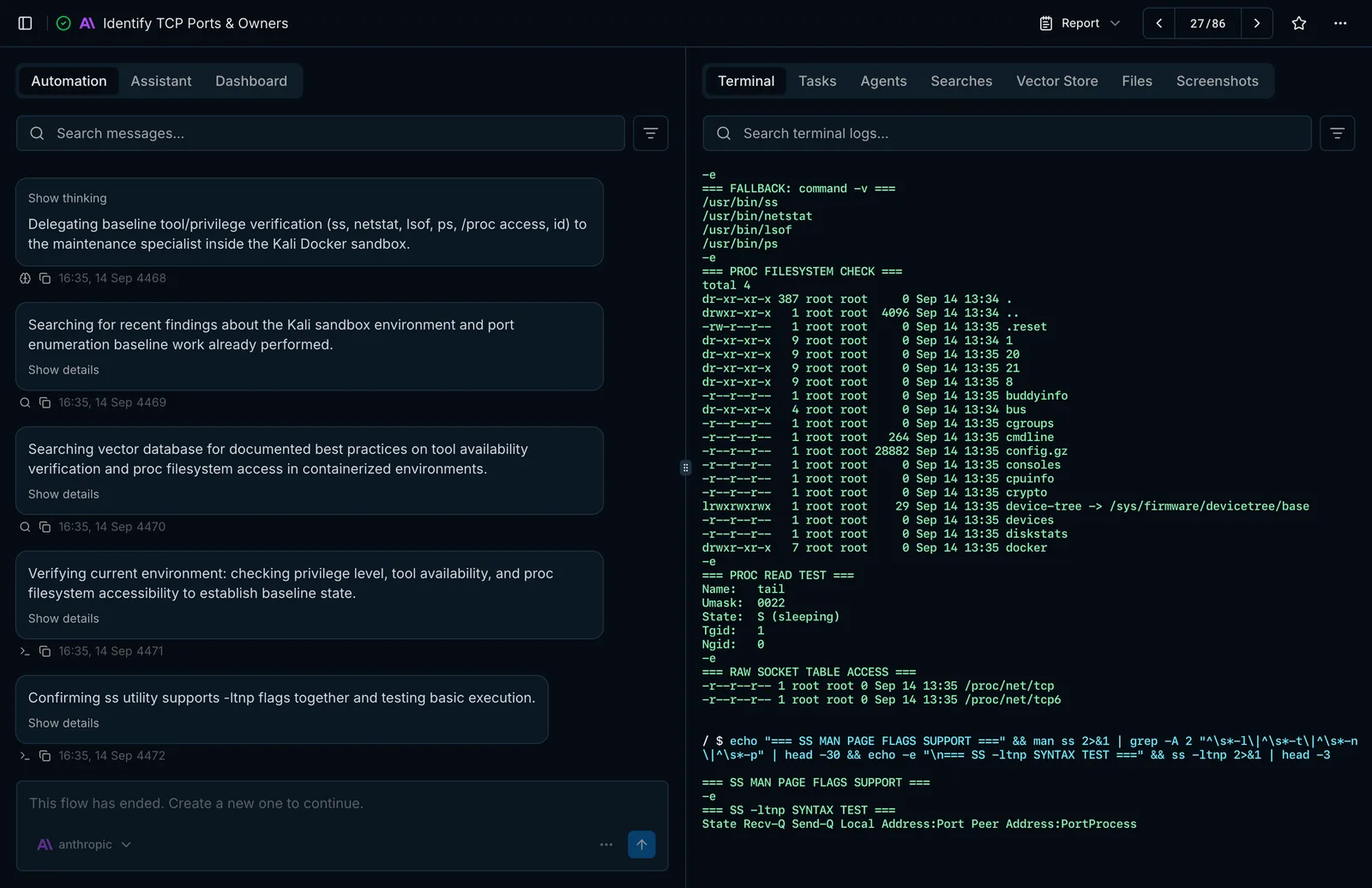
Flow 启动后,PentAGI 会立即打开 flow 页面:
- Automation 显示 agents 的消息和进度;Assistant 是使用相同 toolstool — 工具智能体执行操作所用的手段:终端、隔离浏览器或网络搜索等内置功能,或沙箱中的程序,例如 nmap、metasploit 或 sqlmap。 的聊天界面;Dashboard 则按模型、agent typeagent type — 智能体类型智能体扮演的角色,例如 pentester、coder 或 searcher。模型设置按智能体类型进行选择。 和功能细分使用情况。
- Tasks 列出计划——包括 tasks、subtasks 及其状态。
- Terminal 实时流式展示来自 sandboxsandbox — 沙箱智能体运行其工具的隔离 Docker 容器。界面中将其显示为 Terminal。 的每条命令及其输出。
- Agents、Searches 和 Vector Store 分别显示任务委派、网络检索和 memorymemory — 记忆智能体保留的信息,以便基于先前的工作继续推进,而非从头开始:包括长期记忆、工作记忆和情景记忆。 查询情况。
- Files 存放上传文件、附加资源及从容器中提取的文件;Screenshots 保存 agents 打开页面的截图。
引导运行中的 flow
打开同一 flow 的 Assistant 视图,即可查看其状态、停止当前 task、发送后续指令或调整剩余的规划 subtasks——无需重新启动此 flow。
获取 report
使用 flow 页面上的 Report 菜单,可在网页中打开 reportreport — 报告PentAGI 编写的关于流程及其发现项的文档。在 Enterprise 版中,它是基于模板生成的、可直接交付给客户的文档。、复制 report,或以 Markdown 或 PDF 格式下载 report。
建议从狭窄的目标和单一明确的目的开始。简短而专注的 flows 更易于审查,并有助于在运行更大规模的 flows 之前优化提示词。
最后更新于